




Tools vSRO - Alchemy Tool Guide | Free Registration and Download | Delirus.biz

Thread starter Rion Start date 3 828

Rion

Elite Guard
Global Moderator
Premium V.I.P
Royal
Imperial
Registered Member
2FA Enabled
Joined
Sep 30, 2023
Messages
190
Reaction score
260
Way Coin
12,603

vSROAlchemyTool - Delirus.biz​

​

Hello Silkroad Online lovers and players!​

Today, we're going to talk about an amazing tool that will simplify your alchemy processes in the vSRO world from start to finish and take your gaming experience to the next level: vSROAlchemyTool! Unlike other well-known bots like PhBot or RsBot, this tool offers features specifically focused on alchemy and is quite simple to use. The best part? It's completely free!
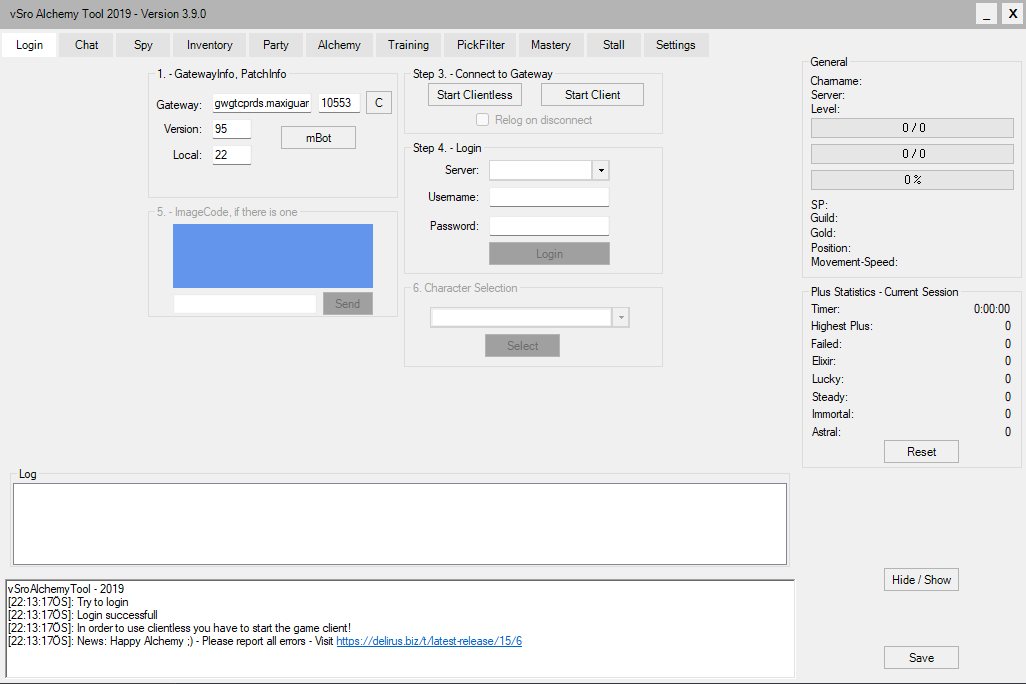
vSRO - Alchemy Tool Guide – image 1


What Can You Do with vSROAlchemyTool?​

vSROAlchemyTool is more than just a simple bot; it offers solutions for many of your in-game needs:
  • Chat Tab:
    • AutoPM: Send automatic private messages.
    • ChatSpam: Automatically repeat specific messages.
    • Incoming Message Tracking: Easily follow all chat messages.
  • Spy Tab:
    • Observe other players and monsters.
    • Ability to Trace specific targets.
  • Inventory Tab:
    • View items in your inventory.
    • Use items directly from within the application.
  • Party Section:
    • Set up AutoParty to automatically form and manage parties.
  • Alchemy Section:(The most functional feature of the tool!)
    • Strengthening: Automate item strengthening processes.
    • Dismantle: Automatically dismantle unwanted items.
    • Manufacture: Manage new item crafting processes.
  • Training Section:
    • Attack: Set up attack skills.
    • Buff: Arrange buff skills. (Offers a simpler yet highly functional system compared to other bots.)
  • PickFilter Section:
    • Define filters for items to be picked up from the ground.
  • Mastery Section:
    • Manage your character's build and stat configurations.
  • Stall Section:(Quite functional!)
    • Automatically set up and manage your market stall.
vSRO - Alchemy Tool Guide – image 2
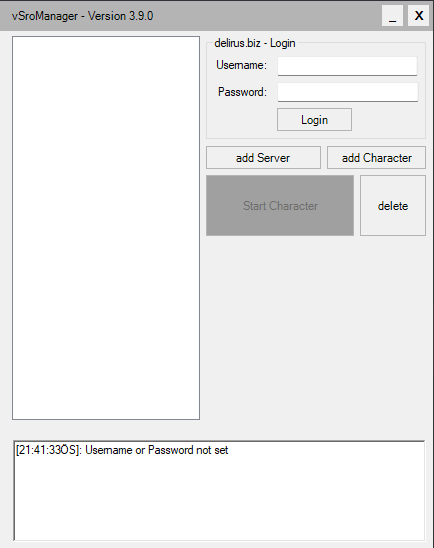
vSROAlchemyTool Installation and Usage;​

Getting started with the tool is quite simple. Here are the step-by-step instructions:
  1. Extract the File: Extract the downloaded .rar file into a folder.
  2. Run as Administrator: Run the vSroAlchemyTool.exe file as an administrator.
    Login and Membership Information
    • For your convenience, I'm sharing my own membership details below.
  3. After entering the details, click the "Login" button.


vSRO - Alchemy Tool Guide – image 3
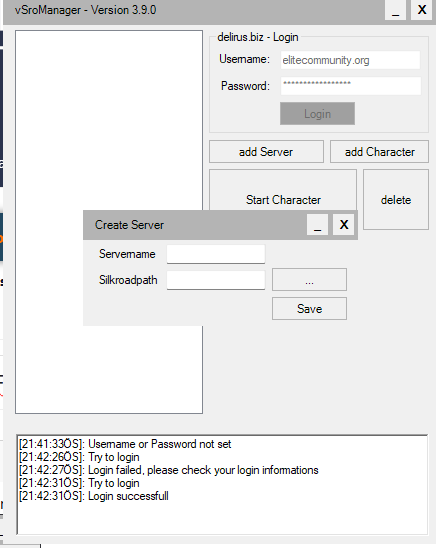
Server and Game Path Settings
  1. Once logged into the program, click the "add Server" button.
    • Type a desired server name in the "Servername" field.
    • Under the "Silkroadpath" option, select the file path of the game (vSRO) you want to use the tool with. It needs to see the SroClient.exe file.
  2. After completing the settings, click the "Save" button.

    Character and Start
  3. A Loading screen will appear. On this screen, the "Lang" option can remain at 8 by default or you can change it to 9.
  4. The "load Map" option is optional; you don't have to change it.
  5. Click the "Start" button and wait for the loading to reach 100%.
  6. Once loading is complete, the "server name" you entered will appear in the top left corner of the screen. Click on this name, then click the "add Character" button.
  7. In the screen that appears, simply enter the name of the character you want to use in the "Character" field.
  8. After clicking the "Save" button, the character name you entered will appear under the server name on the left side.
  9. Click on the character name and then click the "Start Character" button.
  10. The main interface of the bot will appear. Click the "Start Client" button to log in.
Now, vSRO Alchemy Tool is ready to use! You can switch to other tabs and make your settings as needed.


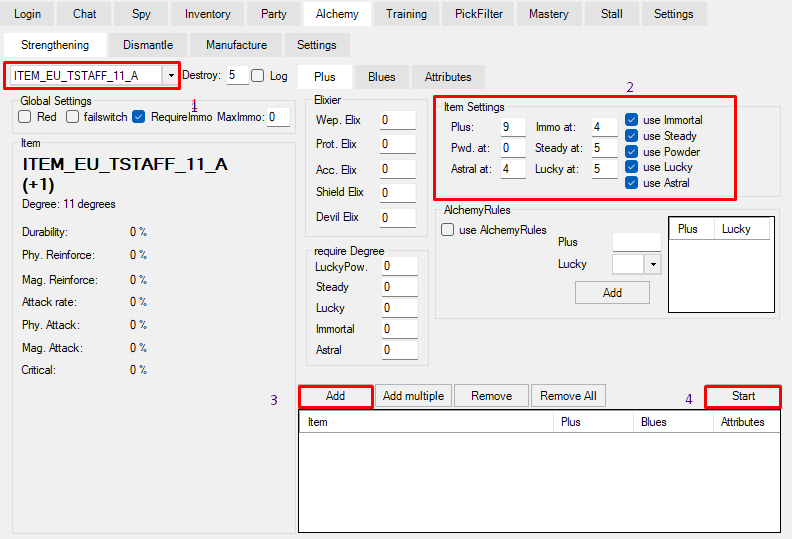
How to Set Up Basic Alchemy Settings

vSRO - Alchemy Tool Guide – image 4
Here are the simple steps to set up basic alchemy with vSROlchemyTool:
  1. Select Item: Choose the item you want to perform alchemy on from the list.
    • Plus: Enter the '+' value you want to achieve.
    • Immo at: Specify at what '+' value the Immortal Stone should be used. (Keeping it at 0 might yield better performance.)
    • Pwd. at: The Powder setting should always remain at 0.
    • Steady at: Specify at what '+' value the Steady Stone should be used.
    • Astral at: Specify at what '+' value the Astral Stone should be used. (Keeping it at 0 might be better.)
    • Lucky at: Specify at what '+' value the Lucky Stone should be used.
  2. Add to List: After completing the settings for the item, click the "Add" button to add it to the fuse list.
  3. Start Process: Click the "Start" button to begin the alchemy process.

Important Notes:​

  • New Item Detection: If you've acquired a new item and the bot doesn't detect it, teleport once in-game and check again.
  • Usage of Lucky Magic Powder etc.: If you have items like Lucky Magic Powder that are used automatically, remember to put them in your pet's inventory or storage to prevent the bot from using them randomly.
  • Item Editing: If you want to change the settings for an item already added to the fuse list, you must first "Remove" it from the list, make your adjustments, and then click the "Add" button again to re-add it.

If you need any further details or information, don't hesitate to ask us here. We wish you good luck in your vSRO adventures!


To view the content, you need to Sign In or Register.

​

 
Finally, guide for alchemy tool. Thanks a lot!
 

vSROAlchemyTool - Delirus.biz​

​

Hello SRO lovers and players!​

Today, we're going to talk about an amazing tool that will simplify your alchemy processes in the vSRO world from start to finish and take your gaming experience to the next level: vSROAlchemyTool! Unlike other well-known bots like PhBot or RsBot, this tool offers features specifically focused on alchemy and is quite simple to use. The best part? It's completely free!

bHnOK.png


What Can You Do with vSROAlchemyTool?​

vSROAlchemyTool is more than just a simple bot; it offers solutions for many of your in-game needs:
  • Chat Tab:
    • AutoPM: Send automatic private messages.
    • ChatSpam: Automatically repeat specific messages.
    • Incoming Message Tracking: Easily follow all chat messages.
  • Spy Tab:
    • Observe other players and monsters.
    • Ability to Trace specific targets.
  • Inventory Tab:
    • View items in your inventory.
    • Use items directly from within the application.
  • Party Section:
    • Set up AutoParty to automatically form and manage parties.
  • Alchemy Section:(The most functional feature of the tool!)
    • Strengthening: Automate item strengthening processes.
    • Dismantle: Automatically dismantle unwanted items.
    • Manufacture: Manage new item crafting processes.
  • Training Section:
    • Attack: Set up attack skills.
    • Buff: Arrange buff skills. (Offers a simpler yet highly functional system compared to other bots.)
  • PickFilter Section:
    • Define filters for items to be picked up from the ground.
  • Mastery Section:
    • Manage your character's build and stat configurations.
  • Stall Section:(Quite functional!)
    • Automatically set up and manage your market stall.

bHnoD.png
vSROAlchemyTool Installation and Usage;​

Getting started with the tool is quite simple. Here are the step-by-step instructions:
  1. Extract the File: Extract the downloaded .rar file into a folder.
  2. Run as Administrator: Run the vSroAlchemyTool.exe file as an administrator.
    Login and Membership Information
    • For your convenience, I'm sharing my own membership details below.
  3. After entering the details, click the "Login" button.


bHn12.png
Server and Game Path Settings
  1. Once logged into the program, click the "add Server" button.
    • Type a desired server name in the "Servername" field.
    • Under the "Silkroadpath" option, select the file path of the game (vSRO) you want to use the tool with. It needs to see the SroClient.exe file.
  2. After completing the settings, click the "Save" button.

    Character and Start
  3. A Loading screen will appear. On this screen, the "Lang" option can remain at 8 by default or you can change it to 9.
  4. The "load Map" option is optional; you don't have to change it.
  5. Click the "Start" button and wait for the loading to reach 100%.
  6. Once loading is complete, the "server name" you entered will appear in the top left corner of the screen. Click on this name, then click the "add Character" button.
  7. In the screen that appears, simply enter the name of the character you want to use in the "Character" field.
  8. After clicking the "Save" button, the character name you entered will appear under the server name on the left side.
  9. Click on the character name and then click the "Start Character" button.
  10. The main interface of the bot will appear. Click the "Start Client" button to log in.
Now, vSRO Alchemy Tool is ready to use! You can switch to other tabs and make your settings as needed.


How to Set Up Basic Alchemy Settings

bHnyW.png
Here are the simple steps to set up basic alchemy with vSROlchemyTool:
  1. Select Item: Choose the item you want to perform alchemy on from the list.
    • Plus: Enter the '+' value you want to achieve.
    • Immo at: Specify at what '+' value the Immortal Stone should be used. (Keeping it at 0 might yield better performance.)
    • Pwd. at: The Powder setting should always remain at 0.
    • Steady at: Specify at what '+' value the Steady Stone should be used.
    • Astral at: Specify at what '+' value the Astral Stone should be used. (Keeping it at 0 might be better.)
    • Lucky at: Specify at what '+' value the Lucky Stone should be used.
  2. Add to List: After completing the settings for the item, click the "Add" button to add it to the fuse list.
  3. Start Process: Click the "Start" button to begin the alchemy process.

Important Notes:​

  • New Item Detection: If you've acquired a new item and the bot doesn't detect it, teleport once in-game and check again.
  • Usage of Lucky Magic Powder etc.: If you have items like Lucky Magic Powder that are used automatically, remember to put them in your pet's inventory or storage to prevent the bot from using them randomly.
  • Item Editing: If you want to change the settings for an item already added to the fuse list, you must first "Remove" it from the list, make your adjustments, and then click the "Add" button again to re-add it.

If you need any further details or information, don't hesitate to ask us here. We wish you good luck in your vSRO adventures!

To view the content, you need to Sign In or Register.

​


vSROAlchemyTool - Delirus.biz​

​

مرحباً بعشاق ولاعبي SRO!​

سنتحدث اليوم عن أداة مذهلة من شأنها تبسيط عمليات الكيمياء الخاصة بك في عالم vSRO من البداية إلى النهاية والارتقاء بتجربة الألعاب الخاصة بك إلى المستوى التالي: vSROAlchemyTool! على عكس الروبوتات الأخرى المعروفة مثل PhBot أو RsBot، توفر هذه الأداة ميزات تركز بشكل خاص على الكيمياء وهي سهلة الاستخدام للغاية. الجزء الأفضل؟ إنه مجاني تماما!

bHnOK.png


ماذا يمكنك أن تفعل مع vSROAlchemyTool؟​

vSROAlchemyTool هو أكثر من مجرد روبوت بسيط؛ فهو يقدم حلولاً للعديد من احتياجاتك داخل اللعبة:
  • علامة تبويب الدردشة:
    • AutoPM: إرسال رسائل خاصة تلقائية.
    • ChatSpam: تكرار رسائل محددة تلقائيًا.
    • تتبع الرسائل الواردة: يمكنك متابعة جميع رسائل الدردشة بسهولة.
  • علامة تبويب التجسس:
    • راقب اللاعبين والوحوش الأخرى.
    • القدرة على تتبع أهداف محددة.
  • علامة تبويب المخزون:
    • عرض العناصر الموجودة في مخزونك.
    • استخدم العناصر مباشرة من داخل التطبيق.
  • قسم الحزب:
    • قم بإعداد AutoParty لتشكيل وإدارة الأطراف تلقائيًا.
  • قسم الكيمياء:(الميزة الأكثر وظيفية للأداة!)
    • التعزيز: أتمتة عمليات تعزيز العناصر.
    • التفكيك: تفكيك العناصر غير المرغوب فيها تلقائيًا.
    • التصنيع: إدارة عمليات تصنيع العناصر الجديدة.
  • قسم التدريب:
    • الهجوم: قم بإعداد مهارات الهجوم.
    • التعزيز: ترتيب مهارات التعزيز. (يقدم نظامًا أبسط ولكنه عالي الأداء مقارنة بالروبوتات الأخرى.)
  • قسم PickFilter:
    • تحديد المرشحات للعناصر التي سيتم التقاطها من الأرض.
  • قسم الإتقان:
    • إدارة تكوينات بناء الشخصية والإحصائيات الخاصة بها.
  • قسم الأكشاك: (عملي للغاية!)
    • إعداد وإدارة كشك السوق الخاص بك تلقائيًا.

bHnoD.png
تثبيت vSROAlchemyTool واستخدامه؛​

البدء باستخدام الأداة بسيط للغاية. فيما يلي التعليمات خطوة بخطوة:
  1. استخراج الملف: استخرج ملف .rar الذي تم تنزيله إلى مجلد.
  2. التشغيل كمسؤول: قم بتشغيل ملف vSroAlchemyTool.exe كمسؤول.
    معلومات تسجيل الدخول والعضوية
    • لتسهيل الأمر عليك، سأشارك تفاصيل عضويتي أدناه.
  3. بعد إدخال التفاصيل، انقر فوق زر "تسجيل الدخول".


bHn12.png
إعدادات الخادم ومسار اللعبة
  1. بمجرد تسجيل الدخول إلى البرنامج، انقر فوق الزر "إضافة خادم".
    • اكتب اسم الخادم المطلوب في حقل "اسم الخادم".
    • ضمن خيار "Silkroadpath"، حدد مسار ملف اللعبة (vSRO) الذي تريد استخدام الأداة معه. يجب عليه رؤية ملف SroClient.exe.
  2. بعد الانتهاء من الإعدادات، انقر فوق الزر "حفظ".

    الحرف والبدء
  3. ستظهر شاشة التحميل. على هذه الشاشة، يمكن أن يظل خيار "اللغة" عند 8 افتراضيًا أو يمكنك تغييره إلى 9.
  4. يعد خيار "تحميل الخريطة" اختياريًا؛ ولا يتعين عليك تغييره.
  5. انقر فوق زر "ابدأ" وانتظر حتى يصل التحميل إلى 100%.
  6. بمجرد اكتمال التحميل، سيظهر "اسم الخادم" الذي أدخلته في الزاوية اليسرى العليا من الشاشة. انقر على هذا الاسم، ثم انقر على زر "إضافة حرف".
  7. في الشاشة التي تظهر، ما عليك سوى إدخال اسم الشخصية التي تريد استخدامها في حقل "الشخصية".
  8. بعد النقر على زر "حفظ"، سيظهر اسم الحرف الذي أدخلته أسفل اسم الخادم على الجانب الأيسر.
  9. انقر فوق اسم الشخصية ثم انقر فوق الزر "بدء تشغيل الشخصية".
  10. ستظهر الواجهة الرئيسية للروبوت. انقر فوق الزر "بدء تشغيل العميل" لتسجيل الدخول.
الآن، أصبحت أداة vSRO Alchemy جاهزة للاستخدام! بإمكانك التبديل إلى علامات تبويب أخرى وإجراء الإعدادات حسب الحاجة.


كيفية إعداد إعدادات الخيمياء الأساسية

bHnyW.png
فيما يلي الخطوات البسيطة لإعداد الكيمياء الأساسية باستخدام vSROlchemyTool:
  1. حدد العنصر: اختر العنصر الذي تريد إجراء الكيمياء عليه من القائمة.
    • بالإضافة إلى ذلك: أدخل القيمة '+' التي تريد تحقيقها.
    • Immo at: حدد القيمة '+' التي يجب استخدام الحجر الخالد بها. (قد يؤدي إبقاءه عند 0 إلى أداء أفضل.)
    • كلمة المرور. عند: يجب أن يكون إعداد المسحوق صحيحًا عند 0.
    • ثابت عند: حدد القيمة '+' التي يجب استخدام حجر الثبات عندها.
    • Astral at: حدد القيمة '+' التي يجب استخدام الحجر النجمي عندها. (قد يكون من الأفضل إبقاءه عند 0.)
    • محظوظ في: حدد القيمة '+' التي يجب استخدام حجر الحظ عندها.
  2. إضافة إلى القائمة: بعد إكمال إعدادات العنصر، انقر فوق الزر "إضافة" لإضافته إلى قائمة الصمامات.
  3. بدء العملية: انقر فوق زر "ابدأ" لبدء عملية الخيمياء.

ملاحظات هامة:​

  • اكتشاف عنصر جديد: إذا حصلت على عنصر جديد ولم يكتشفه الروبوت، فانتقل مرة واحدة داخل اللعبة وتحقق مرة أخرى.
  • استخدام مسحوق السحر المحظوظ وما إلى ذلك: إذا كان لديك عناصر مثل مسحوق السحر المحظوظ التي يتم استخدامها تلقائيًا، فتذكر وضعها في مخزون حيوانك الأليف أو مخزنه لمنع الروبوت من استخدامها بشكل عشوائي.
  • تحرير العنصر: إذا كنت تريد تغيير الإعدادات لعنصر تمت إضافته بالفعل إلى قائمة الصمامات، فيجب عليك أولاً "إزالته" من القائمة، وإجراء التعديلات اللازمة، ثم النقر فوق الزر "إضافة" مرة أخرى لإعادة إضافته.

إذا كنت بحاجة إلى أي تفاصيل أو معلومات إضافية، فلا تتردد في سؤالنا هنا. نتمنى لك حظا سعيدا في مغامرات vSRO الخاصة بك!

[الرد والشكر]
XTsebab.png
[عنوان الكود="تسجيل الدخول للتطبيق"]المعرف: elitecommunity.org
PW: elitecommunityorg[/CODE]

[/الردشكرا

goooooooood
 

Users who are viewing this thread

Solid Online
Back
Top Bottom